Behind the Scenes: The Plant Store

Making Of / 28 September 2021

Hello, I had an opportunity to share my process for my Plant Store artwork with BlenderNation last month. I am sharing it here as well. Hope you might find it useful. Thanks for viewing!

Original Article: https://www.blendernation.com/2021/08/04/behind-the-scenes-the-plant-store/


Idea and Inspiration

I have a deep interest in Japanese design, nature, and plants. Alongside that, I have also been working on my 3D exploration game that is based around Japan. Thus, it felt natural for me to create something with the same theme and that has plants and Japan-themed elements in it.

References

I started collecting reference images for two main areas that were storefronts and plants. I used the PureRef program to arrange all of the collected images, as it is one of the best image reference tools.

Here are some of the images that I used for studying design and ideas:

For storefronts, I mainly used a storefront collection pack from Elora. It includes a great collection of high-quality images. I also collected images of specific objects and plants from Google search.

Modeling

For the modeling part, I first created the blockout space for the main store. This helps me to visualize how I would like to have the windows, doors, roof, and overall shape. One important aspect while working was to keep things simple and reuse objects, with variation, wherever possible.

Most of the models were created from basic primitive shapes like cubes, cylinders, etc. Some models use a bevel modifier for extra edge detail. For each model, I followed a related reference, but just to get an idea of the shape. I was not going for something very realistic in terms of details.

In the process, you can see how the design evolved and changed. In the early stage, I set up the lighting and assigned color materials so I could visualize how things are shaping up. At each iteration I moved things around, changing the scale of objects to experiment with different results. 

Some extra details like scattered leaves and cats sitting help to make space more alive.

Plant Models

The models were created using simple poly modeling techniques. Some were almost the same but used a different color material for variation.For anyone interested, I have a tutorial on my YouTube channel for creating succulent plant models.

To save time, some of the plant 3D models are from my previous project, ‘The Plant Room’.

Ivy Creation

The ivy is based on a particle system generated over a low poly mesh. I created one ivy leaf and used it as an instance to be spread over the base mesh, which, in my case, is a cylinder. Using the rotation and scaling in the particle options, I was able to achieve the look I was going for.

The good thing about using a particle system is that it dynamically adjusts itself over the base mesh shape if there are any changes made to it.

This project was done using Blender 2.91, but the same result can be achieved with more control using geometry nodes, which are now included in Blender 2.93.

Here you can see the particles applied over a sphere and used as a plant/bush-type object later on.

Roof Tiles

For the roof tiles, the first step was to build one roof tile shape. Then, using an array modifier, I created a few rows of tiles. Any change in the main tile is reflected across all other tiles, as they are instances of the main tile. A bevel modifier helps to add highlights to the edges.

All the tiles were created using arrays and placed over the top of the roof.

Sculpting

I used sculpting tools in Blender for some of the 3D models like the cats and planters. I started with creating a basic raw block and then remeshed to join the head, ears, and other parts. Next, I used a smooth brush over the mesh. I was only focusing on creating an overall model shape that looked decent. Later I remeshed to create a low-resolution model.

The planters were created using the same method mentioned above alongside using sculpting tools.

I used simple sphere meshes of different sizes to make the overall form of the clouds. I used the scale tool and the sculpting move brush for shape blockout. One thing to note here was that I kept the meshes low poly as I did not need complex details. 

After I had created a few different cloud shapes, the next step was using voxel remesh to connect them seamlessly as one mesh and smooth them out. Quad remesh helps to create a clean, even topology.

Trees

For trees, I used a nice free Blender add-on, mtree, which is great for tree creation in a fast and easy way. For the flowers, I created a custom low-poly sakura model, which was then applied over the tree. Since mtree uses a particle system for leaves, it was fairly straightforward to assign my custom flower petals and spread them across the tree branches.

Scene Management

In making a 3D scene like this, it is easy to lose track of things; it can become a hassle to find where each object is. From the start, I tried to keep things as organized as possible. I used collections and named them. It was helpful to enable, hide, and look up things when needed.

Rendering

For this project, I used Eevee for rendering. One of the main advantages of using Eevee is its real-time rendering view, which greatly helps to see how things are looking during lighting, materials, and modeling adjustments.

There is a small volumetric area that I added, as well, outside the door area.

For ambient lighting, I added an HDR environment texture map to the world. Then I used a gradient color node for the background. The setup I used hides the HDR map and keeps HDR lighting with a seamless color background.

The world node setup I used is below.

Next, I added a sun light, as well. The sun light helps to create strong shadows with additional lighting.

I created a day and night version of the plant store. Since I was using Eevee for rendering, it was easy to make real-time changes in the light. Everything gets updated instantly.

For the night version, I used a nighttime HDR map and positioned the sun light at a different angle, changing the color to a dark blue tone.

That basically wraps it up. I hope someone will find this Behind the Scenes useful. 

Thank you very much! Stay safe, take care, everyone!
Report

Creation Process Garden - Blender Art

Making Of / 20 December 2019

Hello Everyone, I hope you are doing well,

I recently got the opportunity to have my garden artwork creation process published by 80.lv and Blender Nation.

Links to the articles are below here:
https://www.blendernation.com/2019/11/25/behind-the-scenes-garden-blender-2-8/
https://80.lv/articles/creating-a-simple-stylized-japanese-garden-in-blender/

I am happy to share the details here as well in case someone is interested to know more. I have used Blender 2.8 for this project.


Garden Art - Blender Eevee - 360 Turntable Video Realtime


Concept Idea

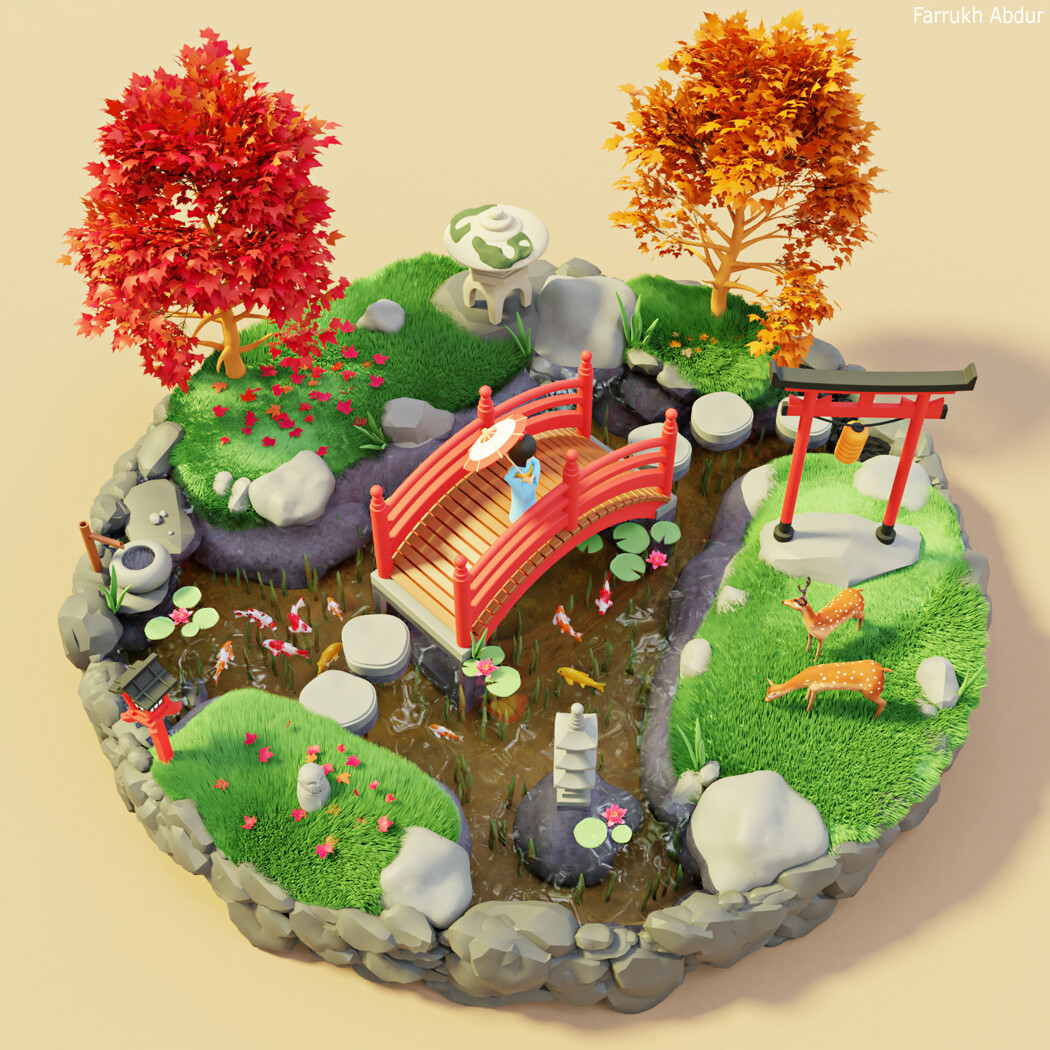
As the fall season was coming, I started exploring different colors of fall and wanted to create an artwork based around it. I looked for different reference places and in the end, I selected the Japanese theme gardens as the main source of inspiration for my artwork.

Collecting References


Before starting with anything in Blender, the first step was to gather reference images of Japanese gardens and fall season colors. After collecting the references, I started identifying which objects I would be including in my work. The references were really helpful in making the scene representation more pleasantly similar looking to a garden that I wanted to show.

For this project, I was going for more stylized forms yet maintaining a Japanese theme alongside.

Here are some of the references which I collected from the start to study.

Reference Sheet


Modeling

The modeling process that I use is standard poly modeling techniques. Starting with one object at a time and completing it. Usually, I use simple primitive shapes like cubes, cylinders as the starting point. As the final views were going to be mostly from a distance, I did not need too many details to the models.

In some objects, I added a subdivision modifier to make them smoother. There are about 25 different objects in this scene.

I have added some views of the different 3d models that I created.

In most cases, I make only one half in models if there are symmetrical. Afterward, I add a mirror modifier to generate the other side.

Once one model is complete, I keep each original model in a different collection layer. In case if I need it later. A linked instance can be created so changes made to the master model are reflected across the instances in the scene.

Most models are built following reference images as a guide. Sometimes the model comprises of smaller parts or sections.

I change the proportions also during the creation process as I was not going for a completely realistic look.
Sometimes I add bigger blocking shapes to help define the model with smaller parts.

There are some models that needed to be created with sculpting tools as the poly modeling method would have taken more time. For this purpose Blender’s new sculpting tools are great.

Using the new remesher tools to combine meshes and then later generate clean topology.

For any sculpt, I blockout the basic shape with spheres or cylinders to draft a shape, then remesh them to combine together, smooth the surface joints and start adding adjustments or details. I was mostly working with low mid poly meshes during sculpt mode. Sculpting brushes like the grab brush, smooth brush, and pinch brush are a few ones common to use.

The remesh panel offers two options. Voxel and Quad. First I use Voxel to combine the meshes into one and later if needed Quad can be used to clean the mesh topology more.

Creating Grass

For the grass, I first created a plane and then added hair particle setup. I used 2-3 different patches of grass and placed them in the scene. The material I used is a standard BSDF shader.

For the underwater plants, it is also using a particle setup. I assigned a custom object collection over a flat plane and changed some parameters to spread it across. For this collection, I made few plant shapes and place them in a separate collection.


Koi Fish and Material Creation

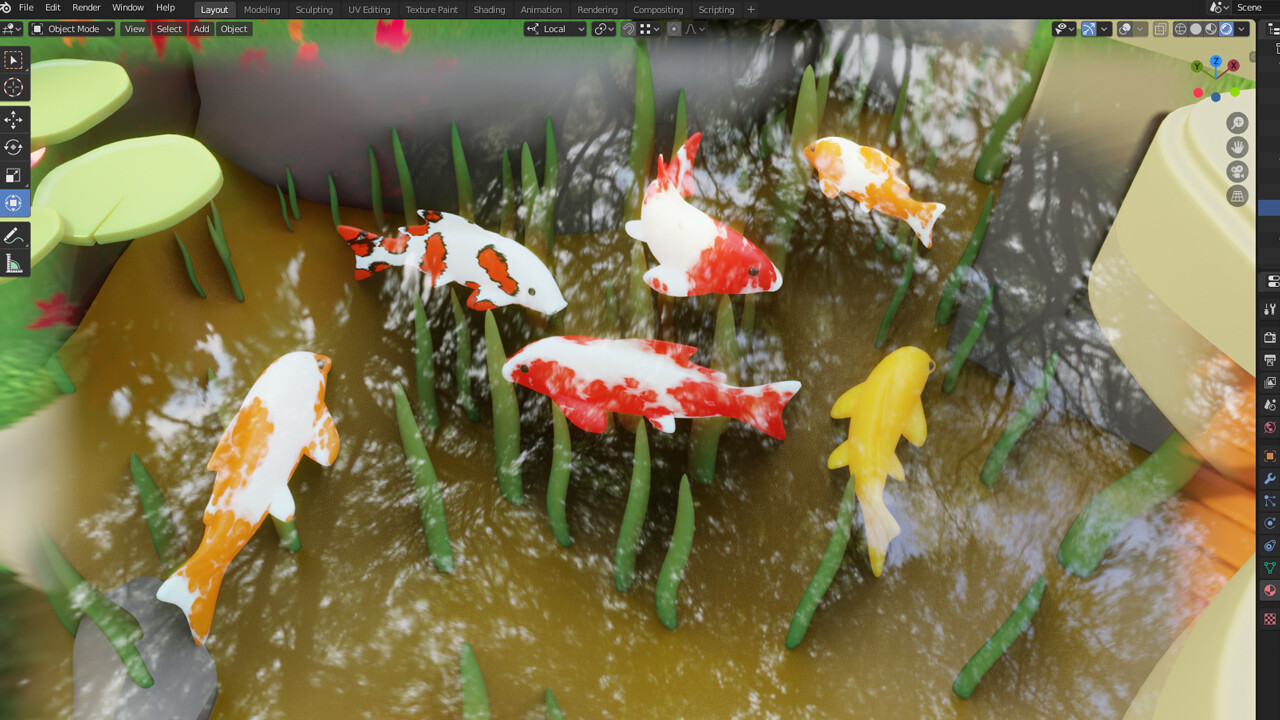
For the fishes, I modeled one and then later created different material variations for it. The pattern is a procedural material which allows creating any sort of Koi looking pattern. I have added a tutorial also below.

For variation, I added a bend modifier to slightly make the fish body shapes differently.


Materials for the Koi Fish 

For creating the Koi fish Material in Blender, I recommend a very nice tutorial by String Fairy. I have added it below for anyone interested.


Rocks with Particles

The rocks that surround the base are using a particle system. First, I created a low poly cylinder and then added a particle system using a rock collection. It then creates a rounded wall type looking rock structure. It was efficient and easy to create a base quickly and customize as needed. For the rocks, I created a set of low poly and some smooth high poly rocks.


Increasing the particle count spreads the rocks along the base mesh


Creating Trees

The trees were created using a great free Modular Tree add-on by Maxime Herpin. It allows a variety of trees to be created quickly and with leaves. This add-on allows node-based tree generation which is fast and can be customized as needed.

Trees created using the Modular Tree Add-on
This is a download link for it and with tutorials on how to use this tree add-on

https://www.blendernation.com/2019/06/17/blender-2-8-tree-creation-with-the-modular-tree-add-on/

Water

For the water material, I used a refraction node and a glossy node to create it.
I have attached the node view for it below. Although there was room for improvements for the water shader I was happy with the result I needed.
I have added a small noise displacement on the water plane to break the reflections a little bit.


Eevee Viewport Water

Water Node Setup


Lighting and Rendering

For the lighting of the scene, the ambient source of light comes from the HDR map which I used in the world environment setting. The HDRI map I used is from HDR Haven, which offers great quality of free HDRI maps.

With HDRI Lighting

With sunlight added

The other source of light is the sunlight. I used it to add more lighting to the scene and for better shadow control. I used Eevee for most of the real-time views and animated turntable. Later, I did some new renders in Cycles to get more refine details and for a more improved visual quality.

For Eevee rendering, the settings are standard which I used. They work mostly well. But depending on any scene, I recommend changing values as needed. Each render generated is almost instant as results are real-time.

- Ambient Occlusion
- Bloom
- Screen Space Reflections/ Refractions
- Soft Shadows
- Color Management Look Contrast


I have added a standard world node setup that I use always in my work.

First thing, It hides the HDRI map but will keep the HDRI lighting to show in the scene. The other thing it does is, it allows any background color to set in the render and viewport.


Creating a Turntable Animation Real-time with Eevee

Finally, in the end, I was looking to create 360 turntable realtime animation. For this, I used a very good free add-on available in Blender. (Turnaround Camera) It will create a camera rotation around any specific object.

Keeping the Scene Organized

I usually create a separate collection in the outliner to manage the scene. It helps at the later stage when there are many objects in the scene and I want to select, find any particular item to work on. I have attached the outliner view below. Just giving a simple name to a collection of objects can be useful.

Some Additional Views of the Garden Scene.


For the future, I may update this scene one more time with more animated objects like leaves falling, fish movements and overall maybe a snow setting for winter.

I had a great time making it and I hope you find it useful in some way. Feel free to let me know in the comments below if you have any questions and I will be happy to reply.

Thank you for checking this! Have a good day!

Farrukh.

Report

Environment Production with Unity 3D and Megascans

Making Of / 08 January 2019

Hi,

Recently I got a chance to have my interview published with https://80.lv/ 
I am sharing it here also as it might be useful for anyone interested in creating real-time environments with Unity3d.

Here is the link for the original article. https://80.lv/articles/003qxl-environment-production-with-unity-megascans/

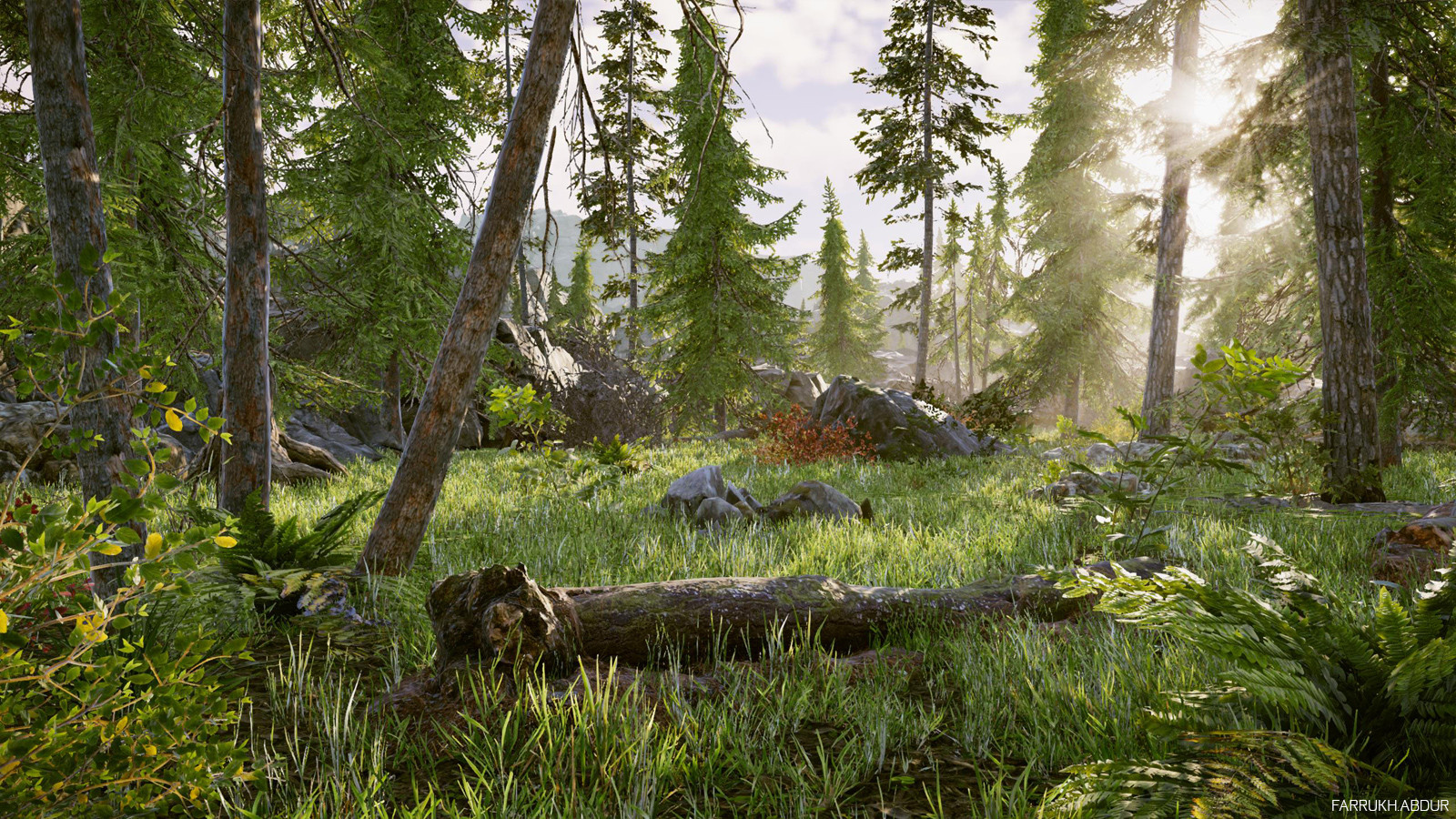
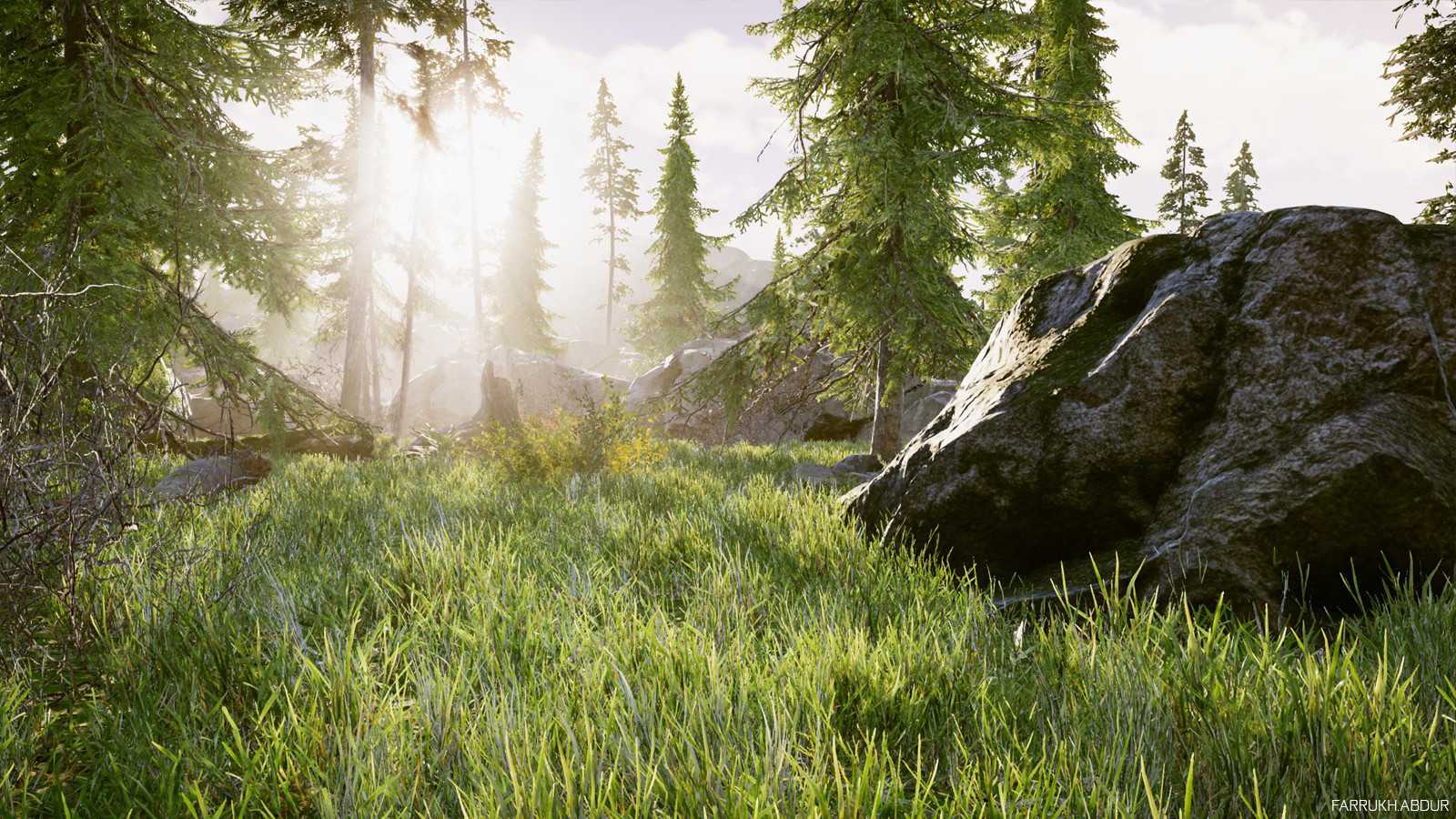
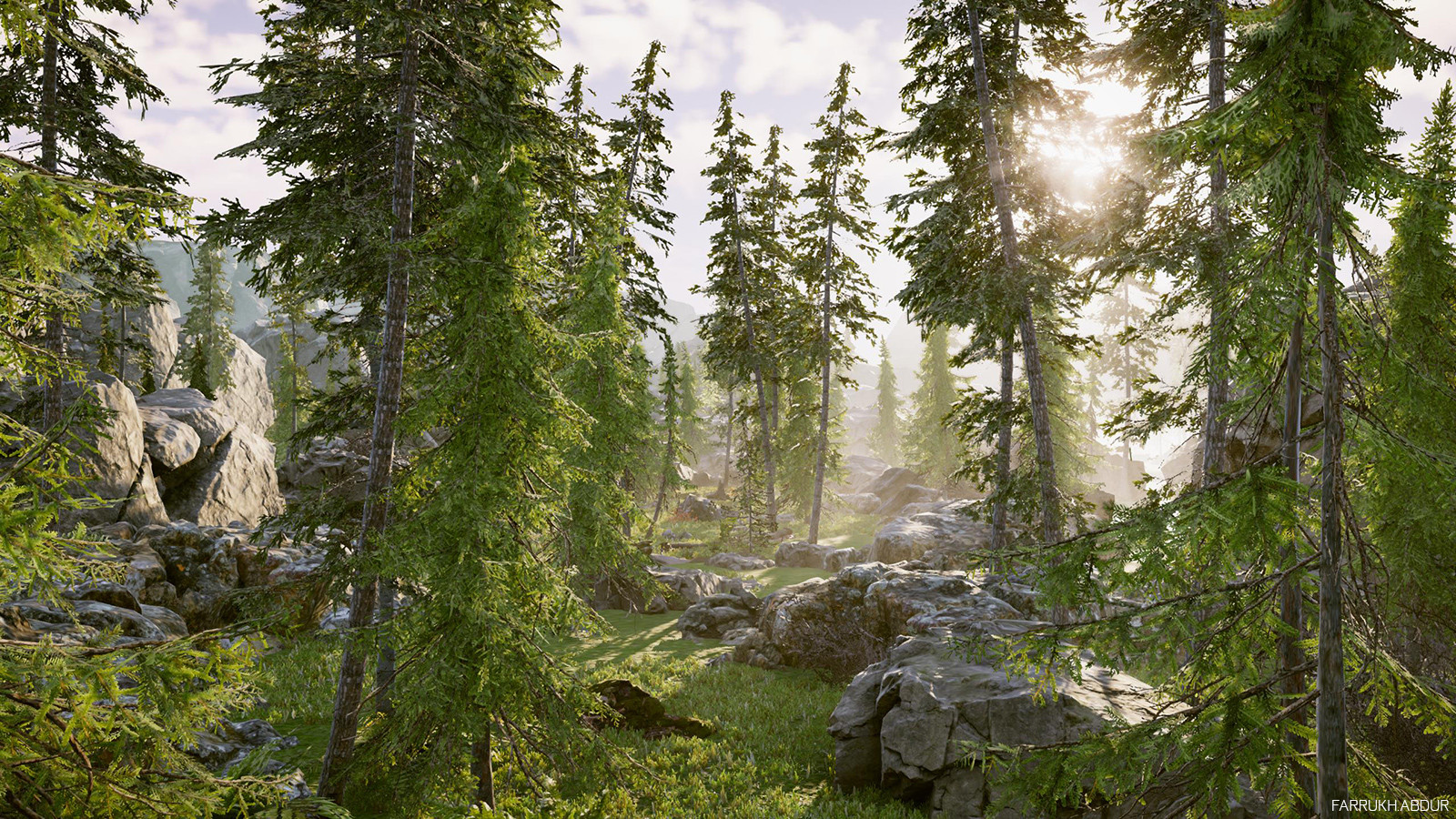
The project work discussed was this Unity forest scene that I did some time back.


Project Goals

This forest environment was designed to try to make a fast and efficient environment in a small amount of time. Another goal was to learn new features of Unity such as advanced lighting, shading and most importantly Megascans integration. The main restriction was to set a time frame of only 3-4 days to create a portion of a detailed real-time ready to use environment.

Real-Time Unity3d Screenshot


Setting Up a Scene in Unity

The project was made in Unity3d using the HDRP preset. Setting up the environment is quite easy. I started with a clean empty scene using the HDRP default settings and build upon it. It includes support for better lighting and shaders.


To figure out how big the environment was going to be I placed a default Unity standard asset 3D character and compared how big the surrounding area will be. Placing the character helps to keep size scale useful.


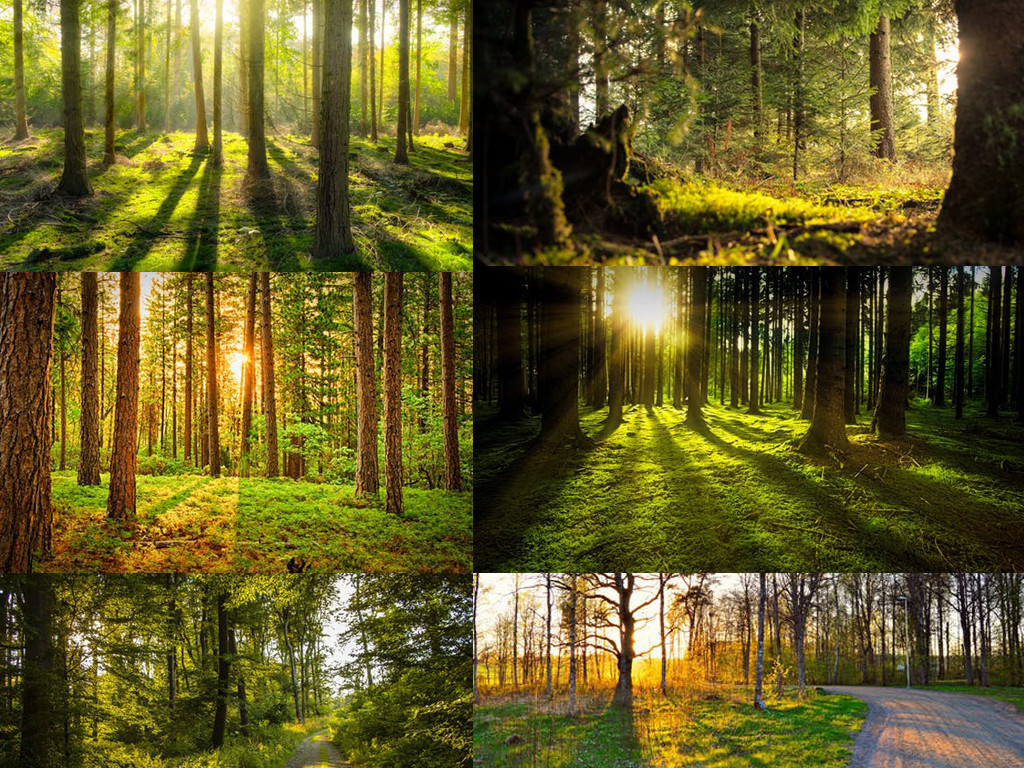
Another good approach is to collect some good references for a forest and similar places. This will give a better idea of how trees, foliage, and other details exist in real-world. The colors and lighting can be also studied from here.

Here is a reference guide that I used:


Next step, I would make a list of main elements that are going to be needed. I bring in most of the 3D assets in the new empty level and place them on the side. This way I know about the 3D models that I will be using. Also, many of the 3D assets are reused in different ways using scale and rotation properties.


I create a model pool outside of the playing area. All are linked as prefabs so changes are reflected across the entire level if needed.

The image below is a view of starting with a simple plane and then building upon it.


Using Megascans was very helpful in creating a detailed and realistic result. They offer some nice collection of free assets so anyone can give it a try and see the quality they offer.

Textures can go up to 8K if needed. However, here I used mostly around 2k. Here are some 3D assets I used:


Quixel helps not only with models but materials, too, and there’s a huge collection of great-looking materials available.

The new Quixel Megascans Mixer app is very useful if custom materials need to be created. I would recommend it to anyone looking to easily create high-quality materials.

Some of the materials used.


Most of the rocks are from Megascans. They come at five different levels of LOD. I have used 3 different types of rocks.


The models used here are optimized and already have associated textures. The 3D meshes which are further away from the camera view use a low poly LOD as compared to the meshes which are closer and show much more details.

Ready-Made Vegetation

The trees are from Unity Asset Store, as there is already a great collection of trees available there. For learning purposes, I looked at Unity’s new Book of the Dead project to learn tree setup. They have some of the best trees which are highly optimized and make use of custom vertex shaders which allow animation of branches. All trees are with 4 level LODs which again benefit the performance.

Grass
The grass uses the new Unity engine material which supports advance shading like surface scattering.


Overview of a single grass base cloned two times with different scale rotation:


With the help of scattering tools like Unity’s Polybrush, grass can be scattered really fast and easily. This can also be applied to trees and rocks. The grass shader is based on the new HD RenderPipeline which allows advanced features like sub scattering for nicer visuals.

Here is a quick demo of using Polybrush scatter feature:


Helpful Unity Features

Some of the main features I used were Post Processing Stack, Cinemachine, Volumetric Lighting, and Environment fog. With the help of these I was able to hit the right color balance and atmosphere I was looking to achieve.

Cinemachine was used for creating different camera views. I use it in every project now to get real-time animated Unity game scene shots. It allows to set up different cameras and produce a nice walkthrough.

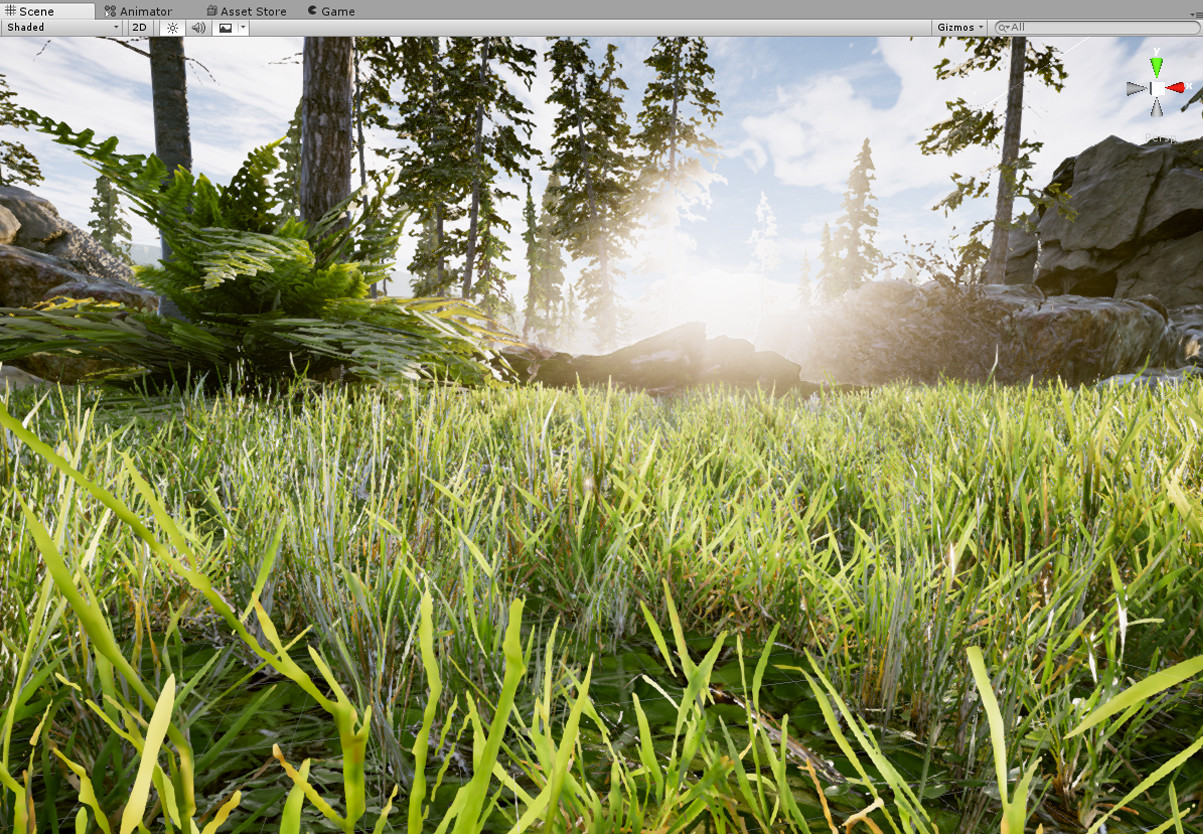
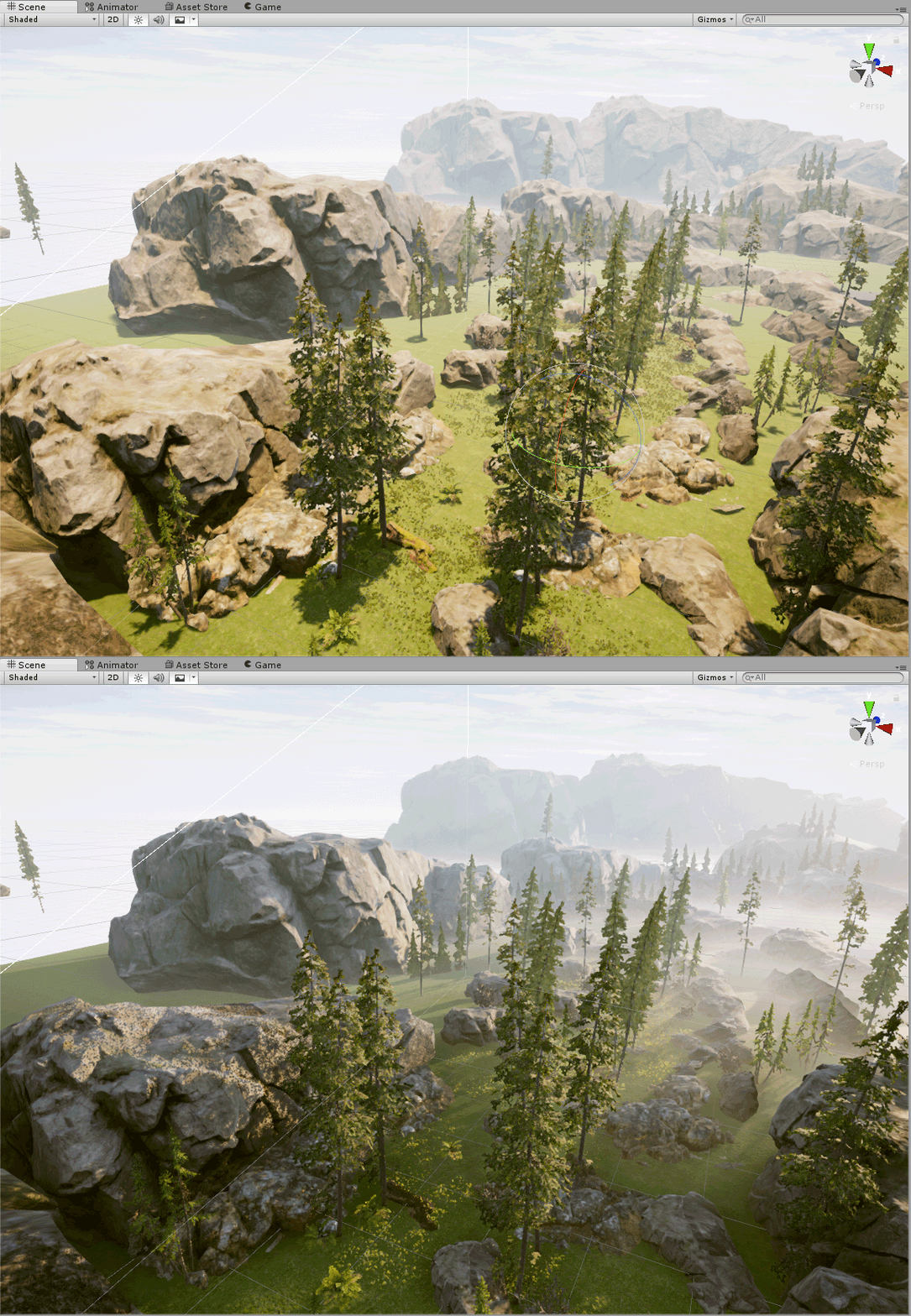
Volumetric lighting helps in creating light shafts:

This is a new feature of Unity3d engine and is now available in the latest update. It has a separate component for fog and volumetric.

Post Processing Stack

This part is showing some of the color grading and other effects like bloom, tint, contrast etc. that have been used.


Lighting

In my case, the lighting I used is all real-time and produces results instantly. As I wanted to test different light conditions it was more suitable here. Otherwise, light can be also baked.


Vertex Animation Shader

The movement of trees, plants, and grass are controlled by a custom vertex shader which is now available in Unity. The vertex shader allows animation of certain parts with control, otherwise, another option would be to animate them manually and that can take more time to create.

Below is a link for an example Unity Project with Vertex Animation. It is freely available for download.
Here you can find more useful information about vertex animation shaders and plenty of examples of how to implement different effects.


Additional Resources

Some of the best learning resources are available on Unity’s Youtube Channel and Unity Asset Store. Recently released projects like FPS sample give a fairly good idea of level creation. Furthermore, for creating high-quality 3D assets, I would recommend studying projects like Book of the Dead I’ve mentioned before and Megascans website.

Once again, here is the list of resources I would recommend for anyone looking to start building environments and game levels:


I would like to thank Unity, Megascans for their great content creation applications. Also thanks to 80.lv for this opportunity to share this article.

Feel free to let me know about your comments or questions if you have any.

Thank you very much!

Report